Schedule Lumen Bandwidth on a Visual Calendar
Read the month, week and day views, spot live events, and create a bandwidth event. · 2:31
Want to see this with your own circuits?
Request a demoUp next →
Manage All Your Bandwidth Events in One Table
2:09
Transcript
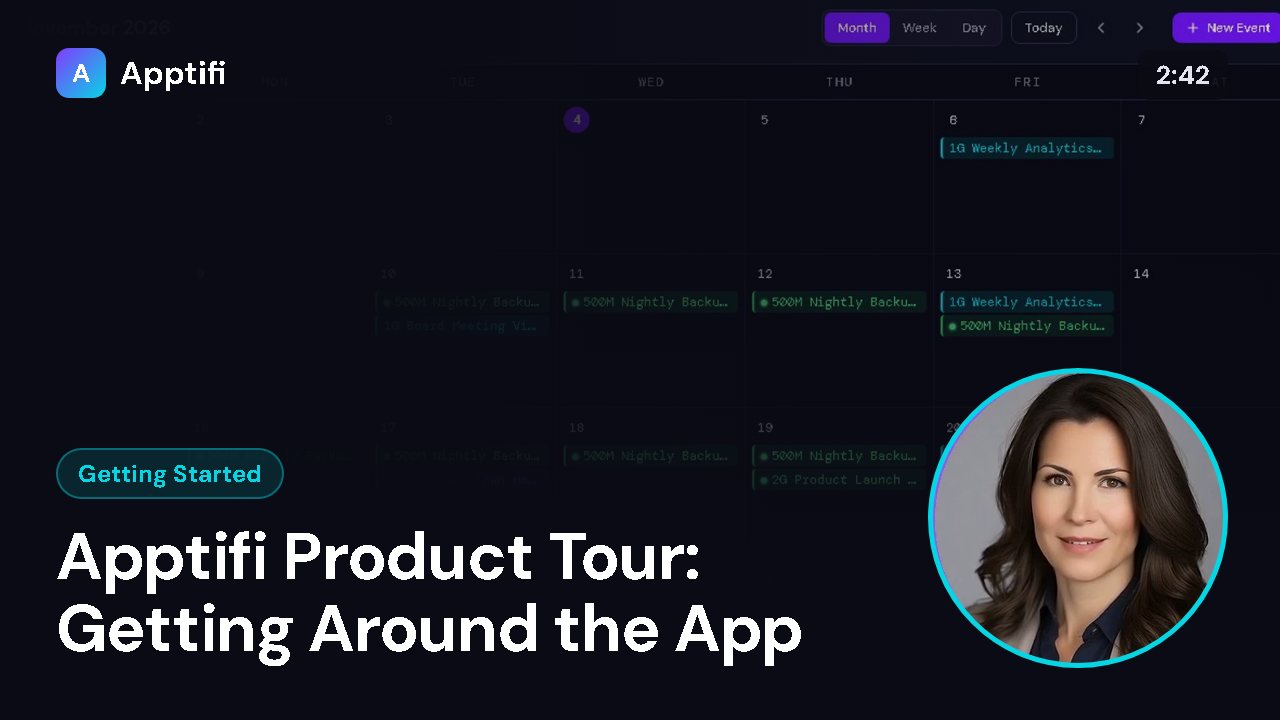
The Calendar is the heart of Apptifi. Every block on it is a bandwidth event: a period when you want your Lumen service to run at a higher speed. In this lesson, we'll read the calendar, move around it, and create a new event. In month view, each day shows the events scheduled on it.
Each chip starts with the bandwidth, with M for megabits and G for gigabits, followed by the event name. The colour tells you the size: lighter blue for up to one gig, purple for larger tiers. If a day has more than three events, you'll see a "more" note. Events shown in green are live.
That means they're attached to an active order, so the scheduler will actually change your bandwidth when they run. Use the arrows to step back or forward, and click Today to jump straight back to the current date. The title at the top always tells you which period you're looking at. Switch to Week to see seven days side by side, or Day to focus on a single date.
Click Month to come back to the full overview. To add an event, click New Event. You can also click any day in the month or week view to start an event on that date. Give the event a clear name, so everyone knows what it's for.
Then choose a bandwidth tier. The tiers run from 1 megabit all the way up to 100 gig. Next, set the start date and time, and the end date and time. Type the dates as month, day and year, then choose each time from the list.
Times are picked in half-hour steps. If the new event overlaps another event for the same circuit, Apptifi warns you and lists the events it clashes with. Here, our event runs into a morning board meeting, so let's start it after lunch instead. The warning clears.
For something that happens regularly, choose a recurrence: daily, weekly or monthly. The end date then becomes the date of the last occurrence. You can also tick Exclude Weekends so the event skips Saturdays and Sundays. Our event is a one-off, so we'll leave it as None.
Click Create Event, and it appears on the calendar straight away. To change or delete an event later, just click it to open the same window. That's the Calendar: read your schedule, move between views, and add events in a few clicks. Next, we'll look at the Events tab, where you can see every event in one list and link it to your circuits.
More for getting started
These videos use an AI-generated presenter and voice. They were recorded in Apptifi using fictional demo data. Lumen®, Lumen Defender℠ and Internet On-Demand are trademarks or service marks of Lumen Technologies. Apptifi is an independent product and is not affiliated with, endorsed by, or sponsored by Lumen Technologies.