A One-Page Monthly Summary of Lumen Spend
Monthly spend, savings, audit, contract and budget highlights on one page, plus scheduled email delivery and list prices. · 3:13
Check Lumen bills against what you ordered and agreed to pay.
See Expense ManagementUp next →
See Every Lumen Service, Its Billing and History
2:44
Transcript
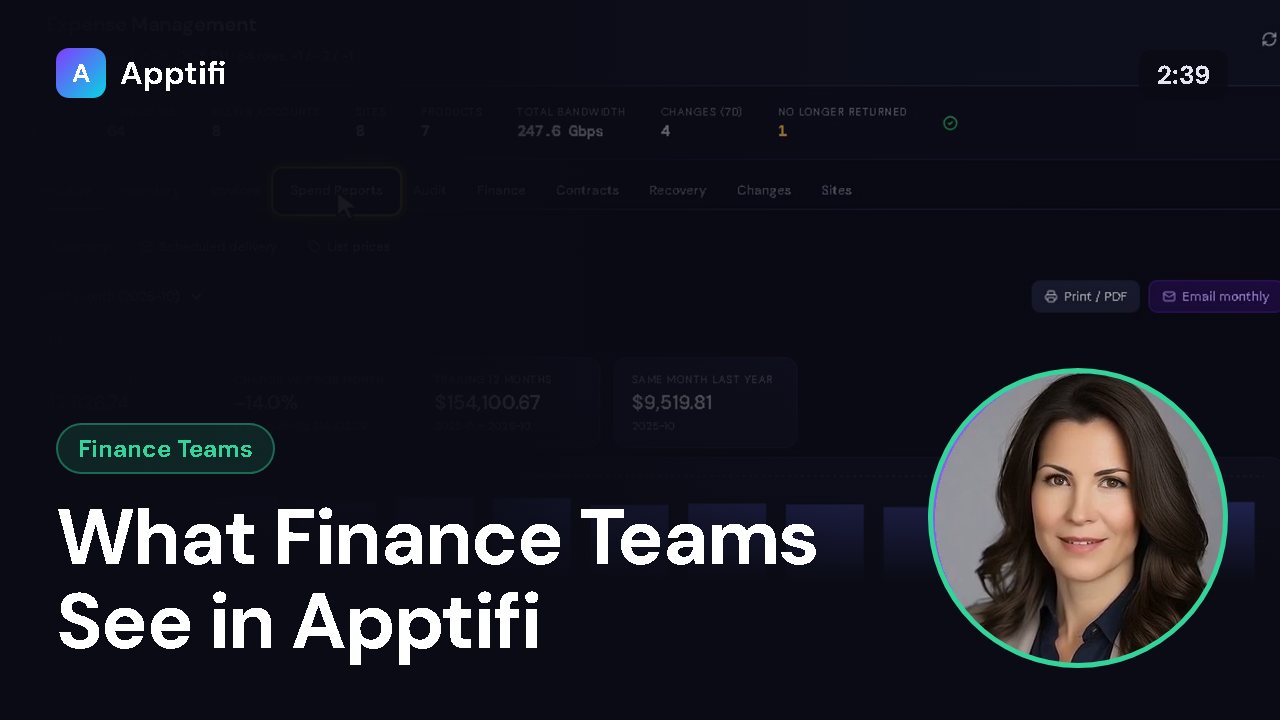
The Executive tab is the one-page view of your telecom spend. It's where a finance user lands by default, and it pulls together spend, savings, audit findings, contracts, and budgets. It has three views: Summary, Scheduled delivery, and List prices. We'll start with the Summary.
The month picker at the top left sets which billing month the summary describes. It starts on the latest month with invoices, and you can step back through earlier months. The Spend section shows what was billed this month, including tax, and how that compares with the prior month. Next to it are the trailing twelve months and the same month last year.
The chart below shows the monthly trend at a glance. Underneath, spend is split two ways: by product family, like transport, IP, or network as a service, and by billing account, with your largest accounts first. Charges that couldn't be matched to a service in your inventory are shown as Unmatched. Scrolling down, Savings and disputes shows savings identified and realized this year, the open pipeline, open disputes, and your recovery rate.
Audit exceptions counts the billing problems still open, the dollars at stake, and which audit rules raised them. Contracts lists agreements whose notice date is coming up or has passed, along with services now billing month to month and what that premium costs you. Commitments projects whether you'll meet each annual spend commitment, and the shortfall if you won't. Budgets shows which cost centers are projected to go over, or are at risk, this month.
At the bottom, Recovery and optimization totals SLA credits you're still owed and the savings opportunity from optimization candidates. To share the summary, Print or PDF opens a print-ready version in a new browser tab, where you can print it or save it as a PDF. Or click Email monthly to have it sent automatically. Choose the frequency, the day, and the hour, pick whether recipients get the email body, a CSV attachment, or both, and list the recipients.
The report always runs with your access, so recipients only see the accounts and cost centers you can see. Then save the schedule. Saving takes you to Scheduled delivery, which lists every schedule with its cadence, recipients, and next run. Each row can be sent right away, edited, or deleted.
If email isn't set up yet, a notice says so, and an admin can turn it on in Settings. List prices holds the price book used to benchmark what you're billed against list price. You can add a price by hand or import a price sheet from your account team as a CSV. Services without a list price finds services that aren't covered yet, and a price check asks Lumen's quoting service for a temporary quote that commits you to nothing.
That's the Executive tab: a monthly summary you can print or email on a schedule, plus the price book behind your benchmarks. Next, we'll look at your service inventory.
More for finance teams
These videos use an AI-generated presenter and voice. They were recorded in Apptifi using fictional demo data. Lumen®, Lumen Defender℠ and Internet On-Demand are trademarks or service marks of Lumen Technologies. Apptifi is an independent product and is not affiliated with, endorsed by, or sponsored by Lumen Technologies.