Manage Your Active Lumen Circuits (Inventory, Part 1)
Read the Inventory status bar, manage bandwidth scheduling on an active circuit, preview its schedule, review costs and history, and run diagnostics. · 3:05
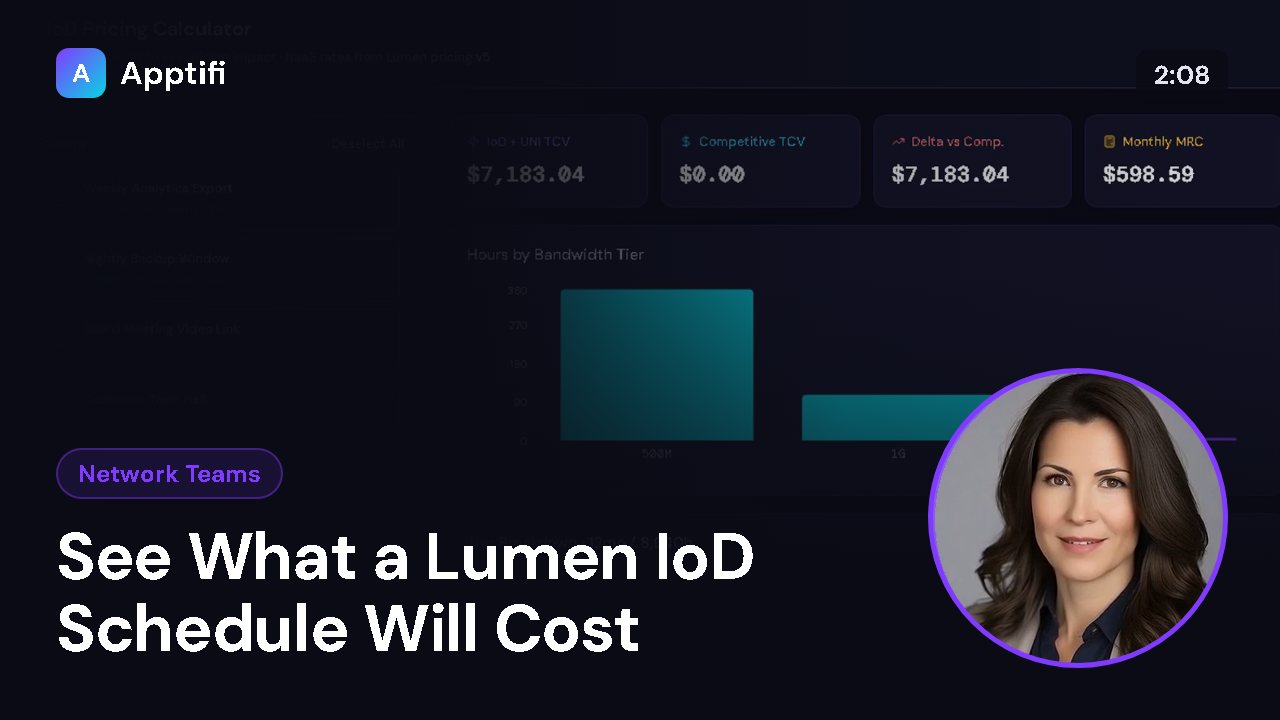
See what scheduling could save on your Lumen bill.
Calculate your savingsUp next →
Track Ports and Orders in Progress (Inventory, Part 2)
2:47
Transcript
Welcome back. In this lesson we'll explore the Inventory tab. This is your live view of every Internet on Demand service you've ordered through Apptifi, from the moment an order is placed until the circuit is up and running. The page refreshes itself every thirty seconds, so status changes from Lumen show up on their own.
Across the top is a quick status count. Inflight is everything still on its way. Requesting, Submitted, and Provisioning show where those orders are in Lumen's process. Scheduling On counts the services Apptifi is actively managing, and Failed appears only when an order needs your attention.
The green banner is your estimated savings this month. It compares what your schedules have cost with running at maximum bandwidth around the clock. Below that are your active circuits. Each card shows the Lumen service ID, the connection type, your customer number, and how many scheduled events are linked to it.
You'll also see the street address, the site ID, and the current speed. Apptifi pulls this list from your Lumen inventory. The time on the right shows the last sync, and Sync Now refreshes it on demand. Let's open the Newark circuit.
The Bandwidth Scheduling box is where the magic happens. When scheduling is on, Apptifi raises the circuit's speed for your scheduled events, then drops it back to the baseline between them. Use Pause Scheduling to stop these automatic changes for a while. The Baseline is the speed the circuit returns to when nothing is scheduled, and each option shows Lumen's price for that speed.
Last run tells you when the scheduler last checked this circuit, and the speed it set. Click Preview Schedule to see exactly what's coming up: the events that will change this circuit's speed, and when each change will happen. Close it when you're done. Just below is this circuit's estimated cost so far this month and how much it has saved compared with staying at full speed.
Open Bandwidth History and switch to seven days to see a chart of every speed change Apptifi has made. Scroll down for the full record. You'll find every identifier for this service, including the external ID, the Lumen order ID, and the colorless key. After that come the address from Lumen's inventory, the billing account and contact, and the product and routing settings from the original order.
Need to check on a circuit's health? Click the lightning button. Apptifi asks Lumen to run diagnostics and shows each check as a card. Green means it passed, and amber means it needs attention.
Open Details for the specifics, and read the summary at the bottom. You can run the checks again from the refresh button. That covers your active circuits: status at a glance, scheduling controls, costs, full details, and diagnostics. In part two, we'll look at ports, orders that are still on their way, and closed orders.
More for network teams
These videos use an AI-generated presenter and voice. They were recorded in Apptifi using fictional demo data. Lumen®, Lumen Defender℠ and Internet On-Demand are trademarks or service marks of Lumen Technologies. Apptifi is an independent product and is not affiliated with, endorsed by, or sponsored by Lumen Technologies.